Why use primary science simulations?
Have you ever tried teaching STEAM subjects online during a global pandemic? How did you do it and how did you get on? The first things I began to look for were primary school science simulations so that the kids in my class could continue with the subjects we had started.
I checked out dozens of hopeful-looking links, only to find that they were either far too technical for primary school kids (or me!) or they had no instructions or they didn’t do exactly what I needed for the lessons.
So, no offence to any primary science simulation author not on this list. Clever people worked very hard to make them but this is my pick of what worked for me, teaching Years 5 and 6 in an international primary school during quarantine. If you think I should add any to the list, please let me know and I’ll take a look at them.
Technical Notes
Our school got an Office 365 account about a week after quarantine started, so we were using Teams for our classes. Before that, we used Skype.
Most of the kids in my class seem to have better computers than me. Mine is about 5 years old and nothing special by today’s standards. For anyone interested, here are the specifications:
- Operating System – Windows 10 Pro 64-bit
- CPU – Intel Pentium N3540 @ 2.16GHz, Bay Trail-M 22nm Technology
- RAM – 4.00GB DDR3 @ 666MHz (9-9-9-24)
- Graphics – Intel HD Graphics
- Storage – 447GB Patriot Burst (SATA (SSD))
Sounds simulations
Luckily, we had already been through the basics of sound waves and how the human ear works. The fun and games of making string telephones and twanging rulers off the edge of our tables is all well and good in a classroom but might annoy parents trying to work from home.
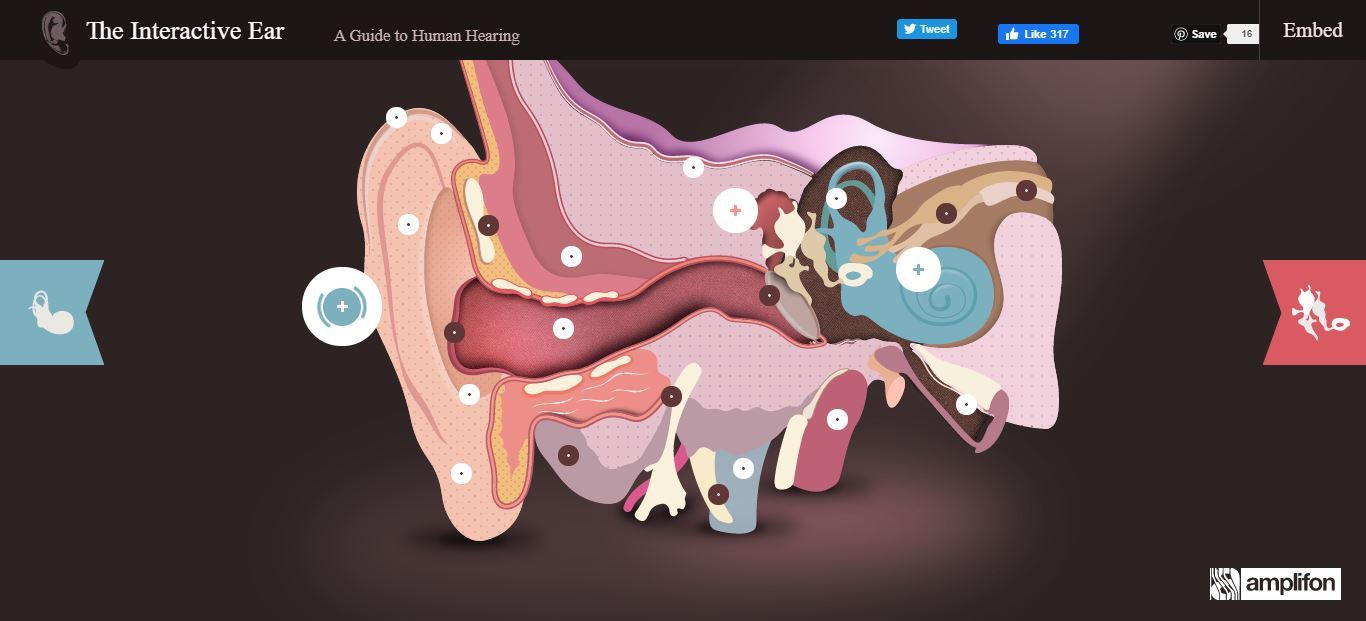
However, if you need an interactive diagram of the human ear and how it works, look no further than Amplifon’s Interactive Ear guide.
Hover over the options to see information.
Hover your mouse over the marks on the pictures and information about each part of the ear will appear. You can follow sound waves as they enter the ear and see how the ear focuses them and converts them into nerve impulses.
Changing Sounds
To recap the concepts of pitch and volume, I started with Changing Sounds, by Science Kids. They offer a range of easy to use games and simulations which I found perfect for introducing a topic to Year 5. They would also be good for younger kids, with easy to use interfaces and friendly colours. You will need to enable Flash player in your browser to run the games, though.
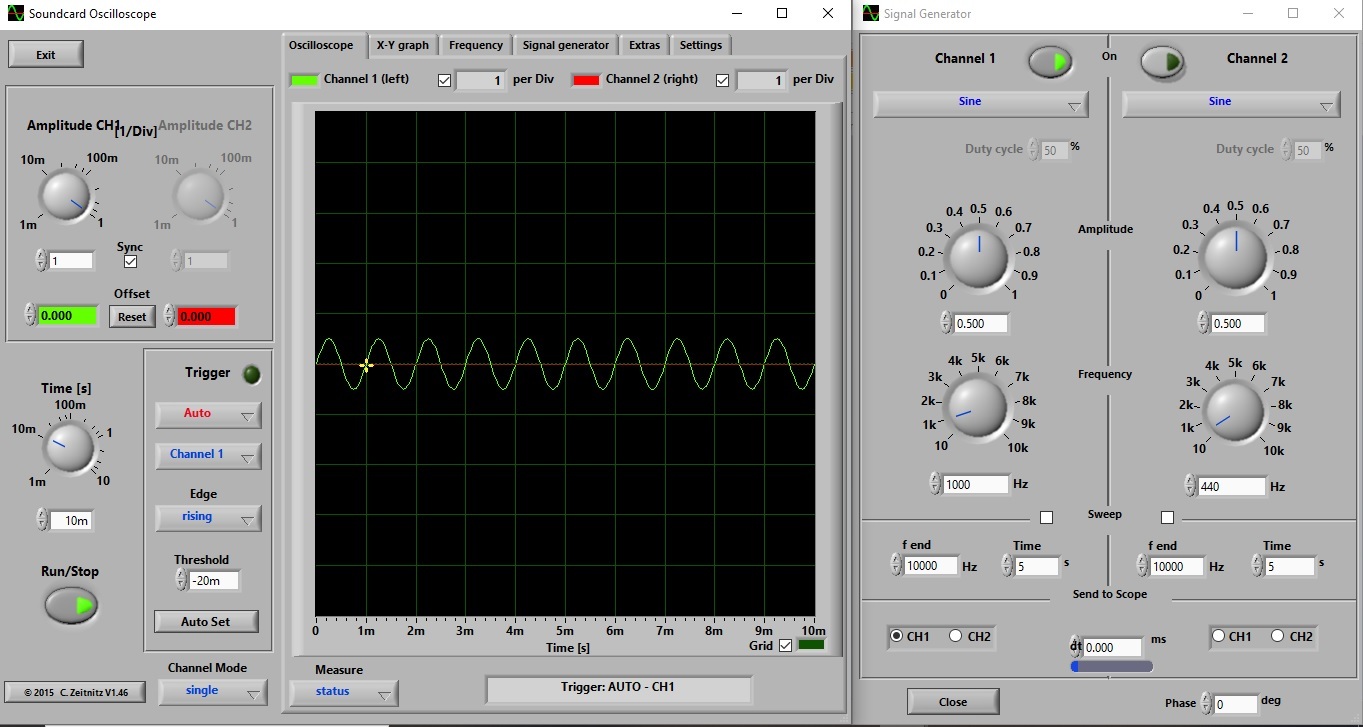
SoundcardScope 1000 Hz Waveform
1000Hz at 0.5 amplitude waveform.
Soundcard Scope
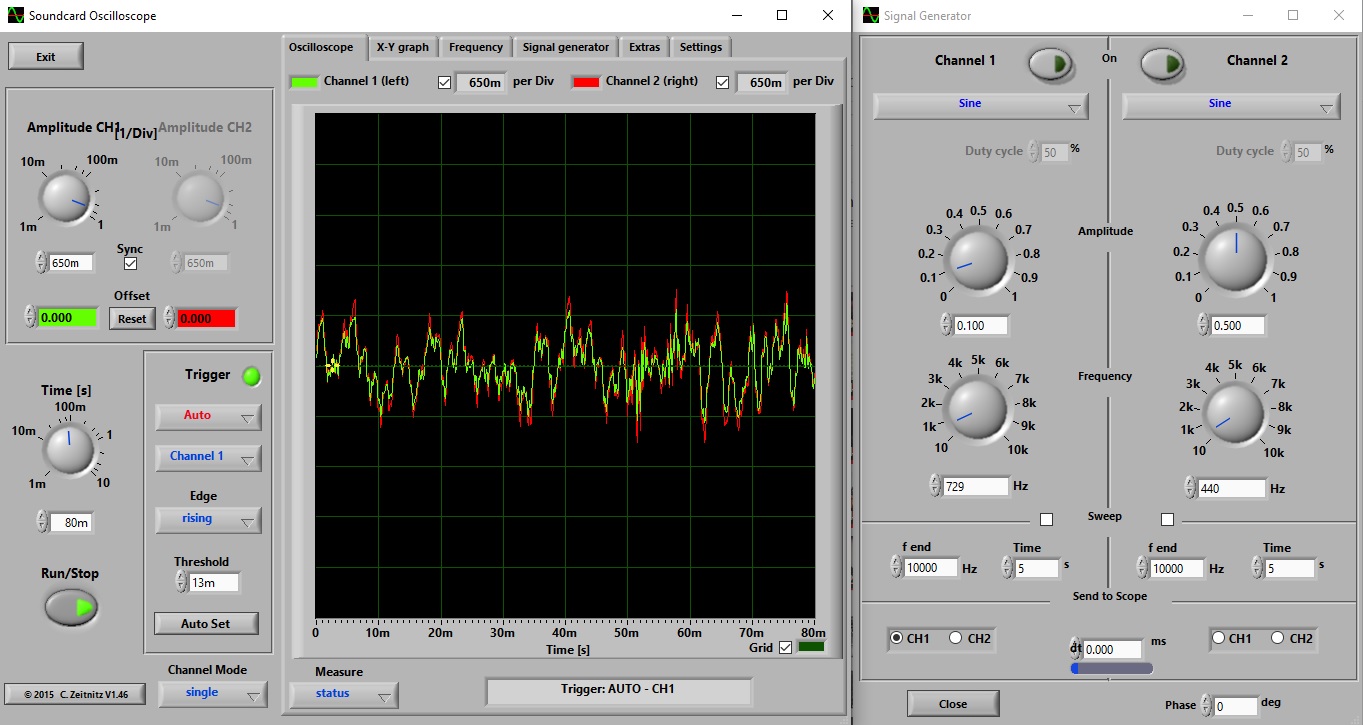
Soundcard Scope worked for me because it was the only oscilloscope I found which generated a sound that you can hear as well as a waveform you can see.
I wanted to show the class what frequency and amplitude actually are and Soundcard Scope worked perfectly for that.
The sound input can be set as either the signal generator, the computer’s speakers or its microphone. If you’re demonstrating in a classroom or sharing your screen online, you can show the class how the wave changes as they speak, or if you play some music.
The signal generator can be opened in a different window and then resized so that it’s on the screen right next to the oscilloscope. Because the signal is audible, it’s obvious what is happening as you adjust frequency and amplitude. Pupils can see the waveform on the oscilloscope change as you adjust the dials.
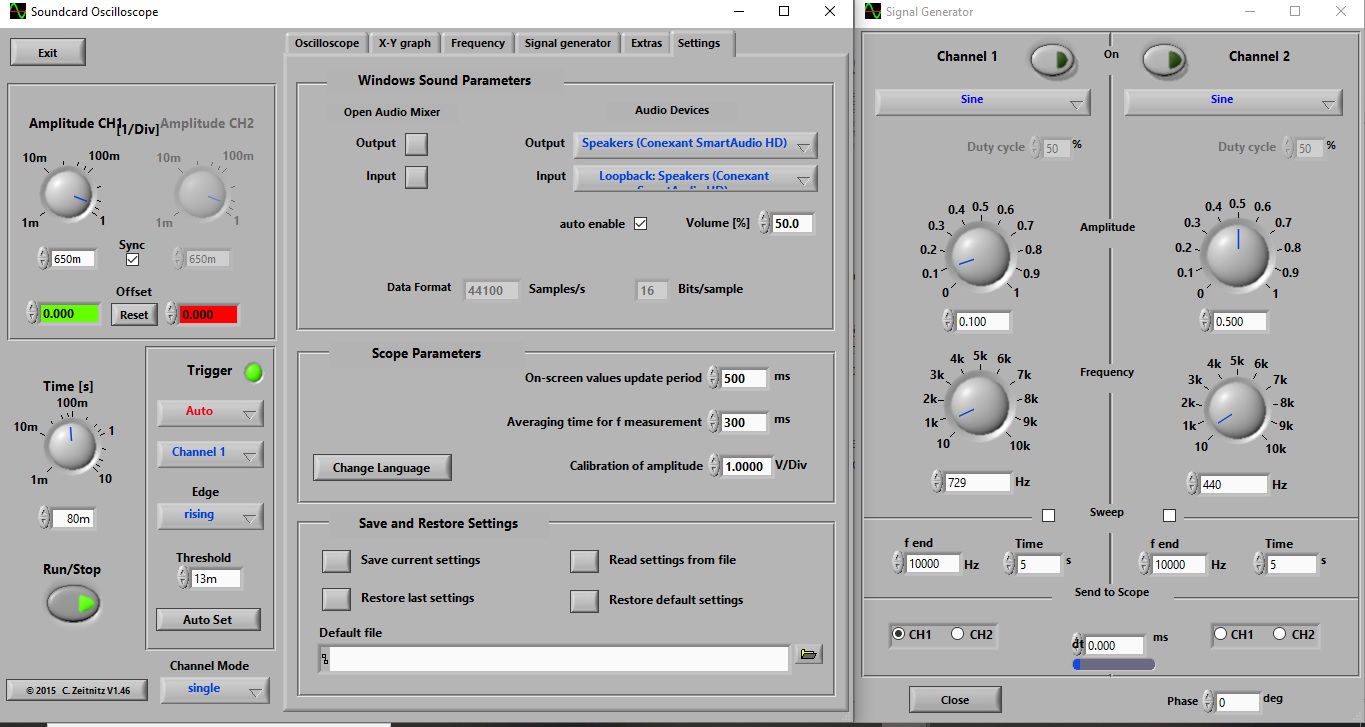
You have to download Soundcard Scope to your computer from the website. Once you have it open, go to the Signal Generator tab at the top and open it in a new window.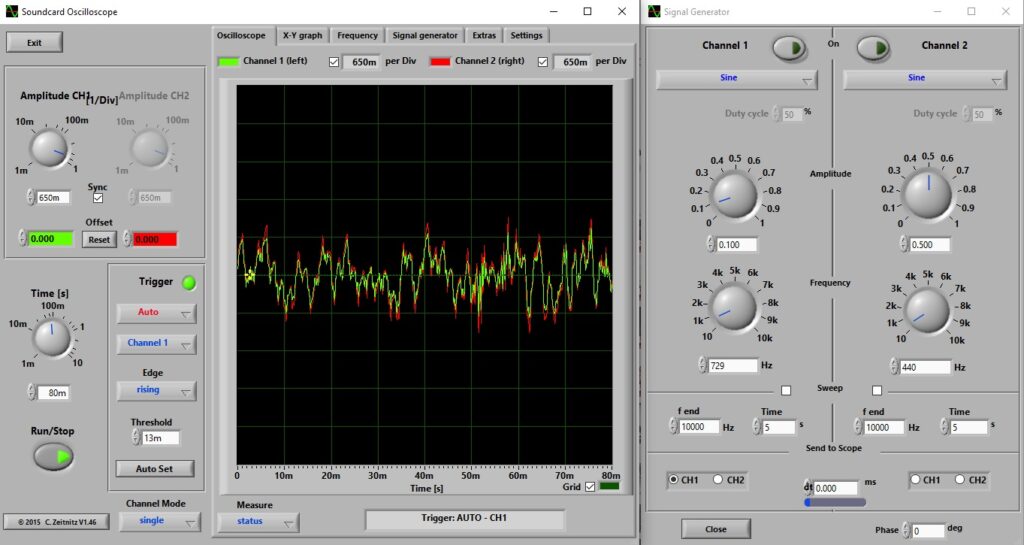
Under the Settings tab you can select the input device – the computer’s speakers, microphone or scope loopback for the signal generator.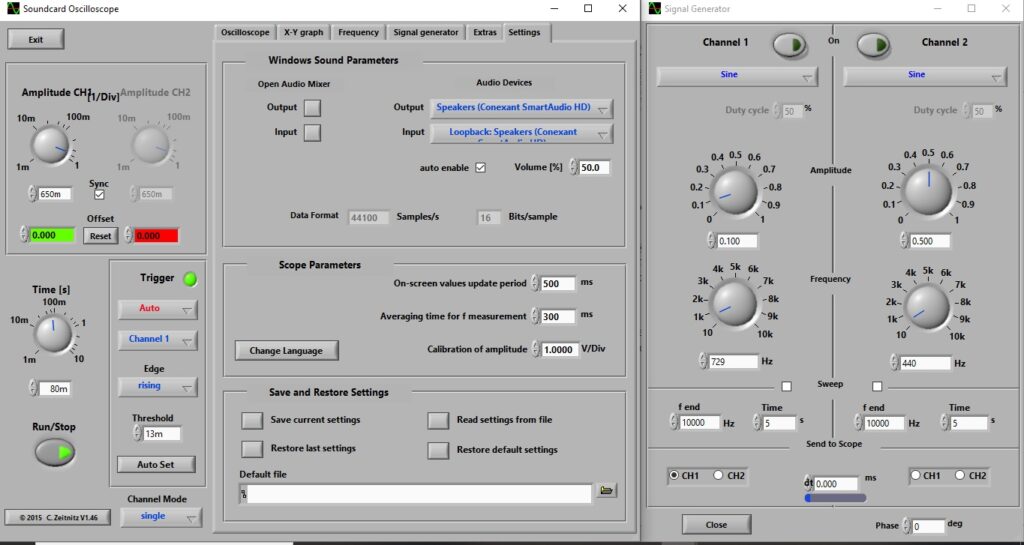
You can show 2 channels on the oscilloscope and choose different signals on both of them via the Signal generator. Click the button next to the Channel number and it will light up green to let you know it’s active.
Under the Channel number is a drop-down menu for the different waveforms you can choose.
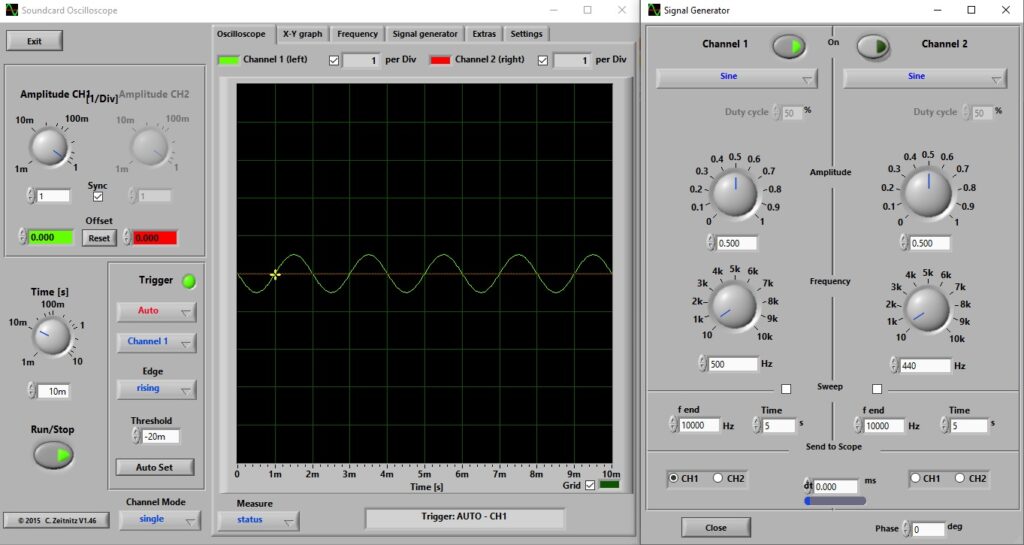
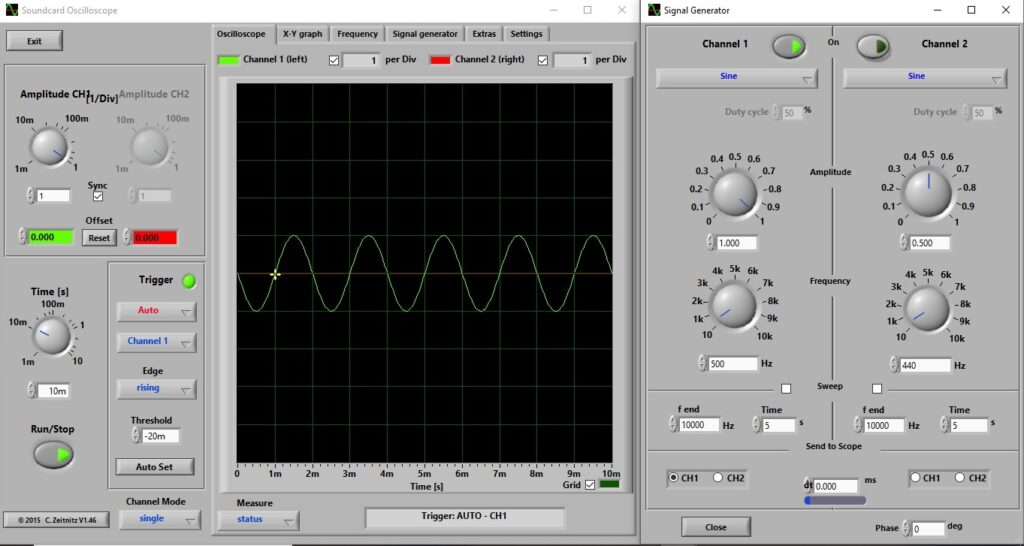
The following images show a sine wave of 500 Hz and 1000 Hz, with amplitudes of 0.5 and 1.0. On the left of the oscilloscope screen are the channel amplitude scales and time scale. You can play around with these to find a scale which shows your waveform best, depending on what you want to demonstrate.
-
-
500Hz, amplitude 0.5
-
-
500Hz, amplitude 1.0
-
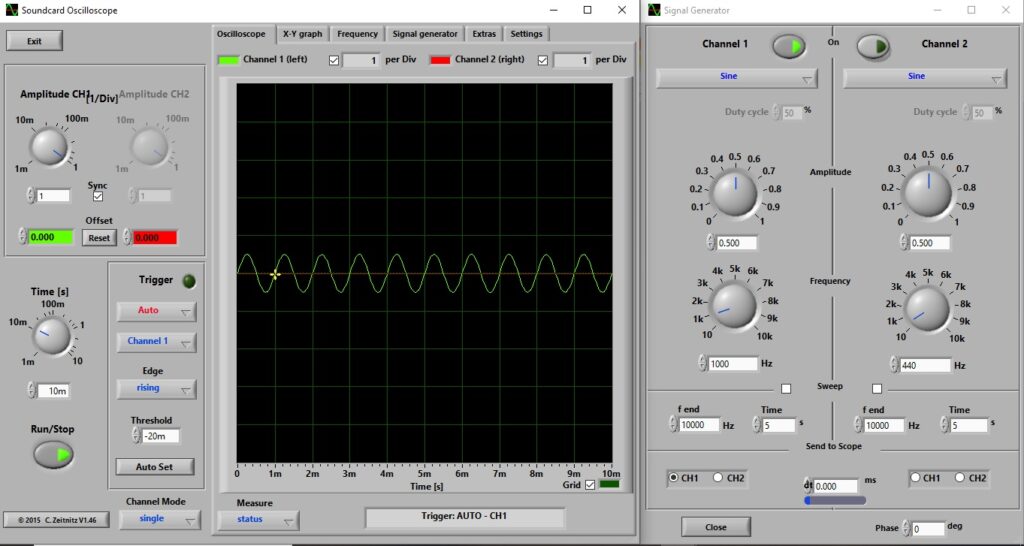
-
1000Hz, amplitude 0.5
-
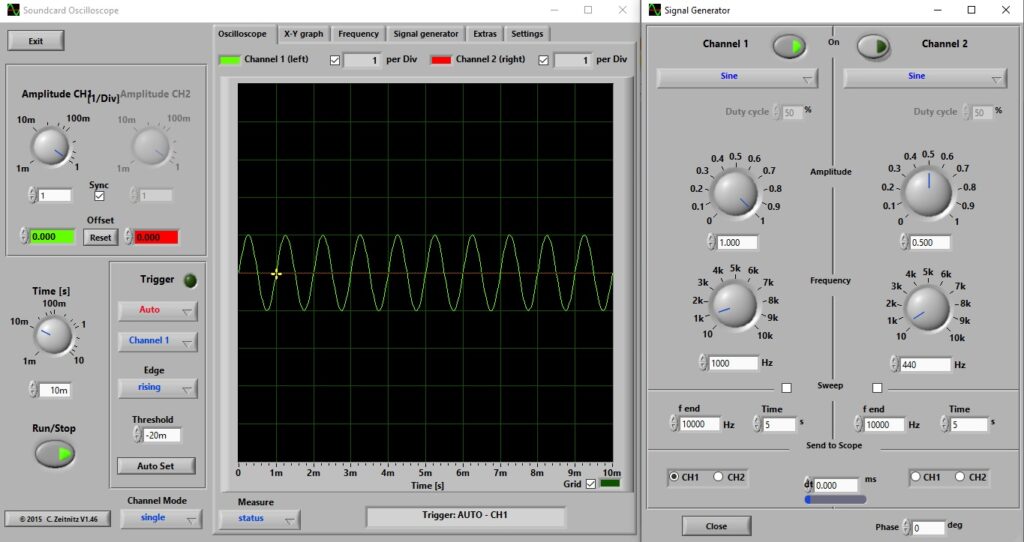
-
1000Hz, amplitude 1.0
There are many other features to this great piece of software, so you can use it for a lot more than Year 5 science. I’ll certainly be keeping it for next year’s class because I found it so easy to set up and use.
Wave Propagation Simulator
If you want to visualise how sound waves travel, you can try the ripple tank simulator from Falstad. It is a clear way of demonstrating effects such as echos or Doppler shift (shown below). The setup menu is simple yet contains over 70 examples of wave sources, both sound and electromagnetic, WAY beyond the scope of primary science!
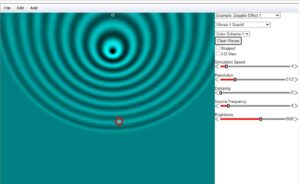
Be warned though, some of them can make you feel a bit odd if you watch them for too long. They can be a little hypnotic and disorientating!
Electric circuits simulations
Electricity Circuits Game
A good place to start demonstrating the basics of batteries, bulbs, conductors and insulators is Science Kids’ electricity circuits game. This very clear and simple introduction is perfect if there is some reason you can’t use real components with your class, e.g. pandemic lockdowns, etc.
You can swap different conductors, batteries and light bulbs and see the effect of the changes. Just use the red left and right arrows at the bottom to scroll through the components menu, then drag and drop them into position.
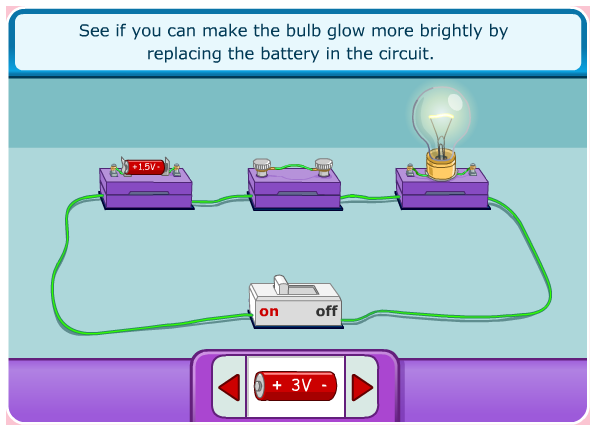
Its range of components is limited to different wires, batteries and bulbs but it certainly shows the principles of the circuits clearly. It is very user friendly and you can also switch between picture and circuit diagram view.
Circuit Construction Kit: DC – Virtual Lab
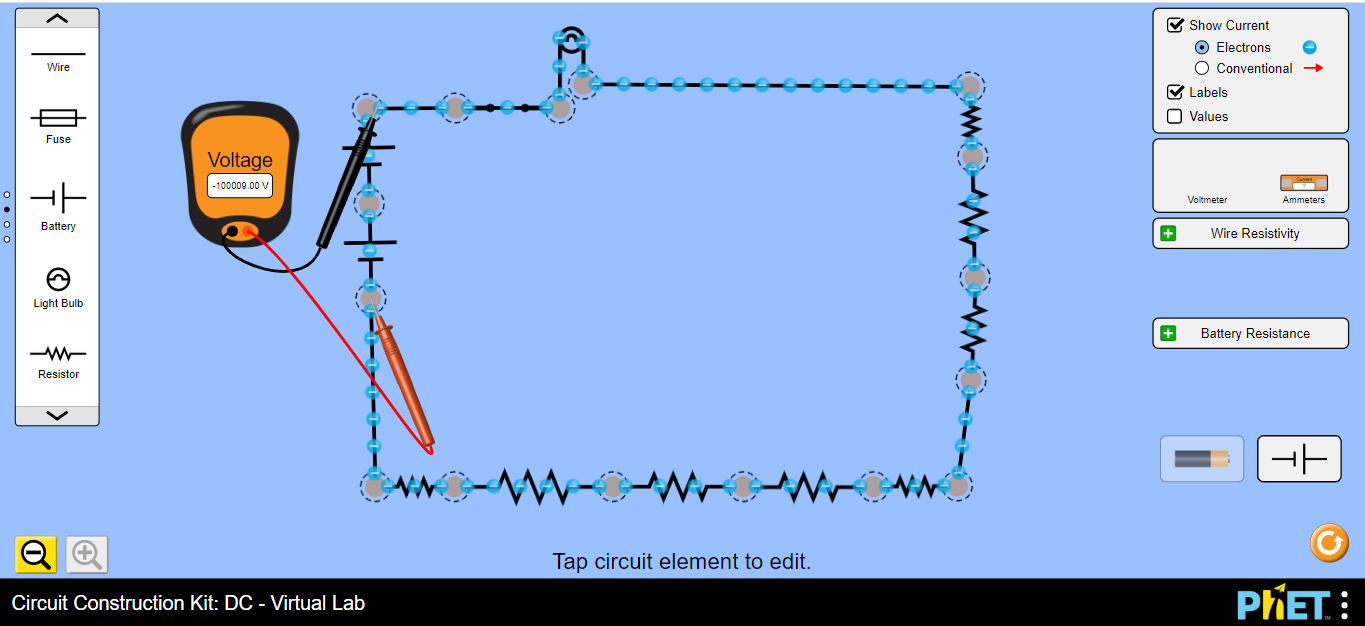
Circuit Construction Kit from PhET Interactive Simulations is an ideal step up from Science Kids. The graphic interface is just as user friendly but the range of supported components is greater.
From a menu on the left of the screen, you can drag and drop a variety of power sources, conductors and insulators into a circuit. On the right you can select a voltmeter, ammeter, battery and wire resistance settings. You can also switch between picture and circuit view here.
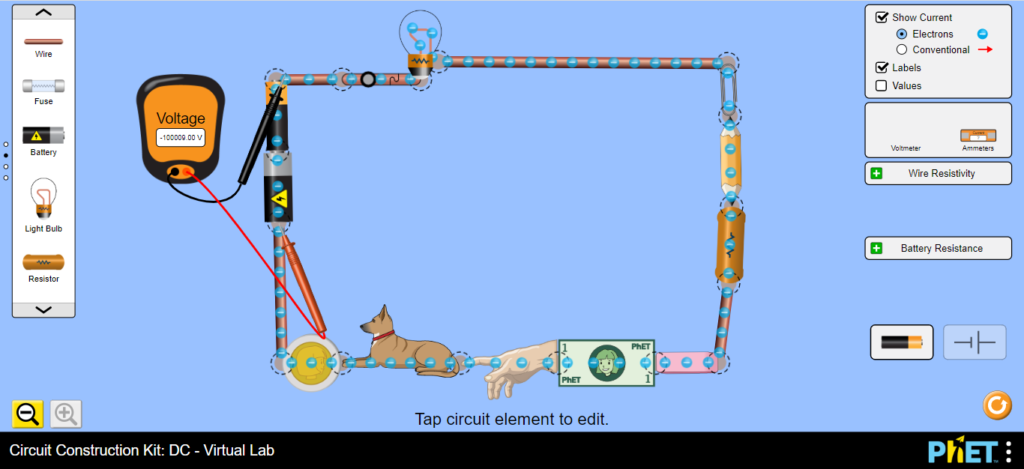
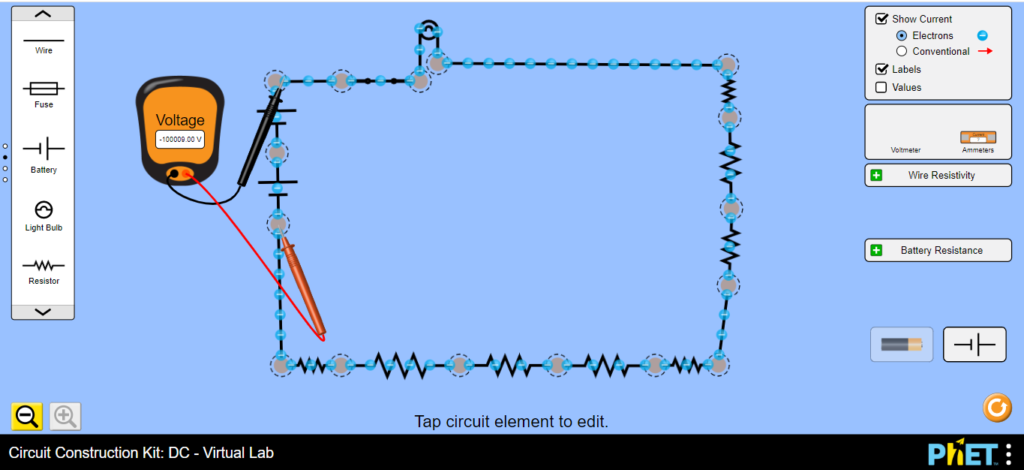
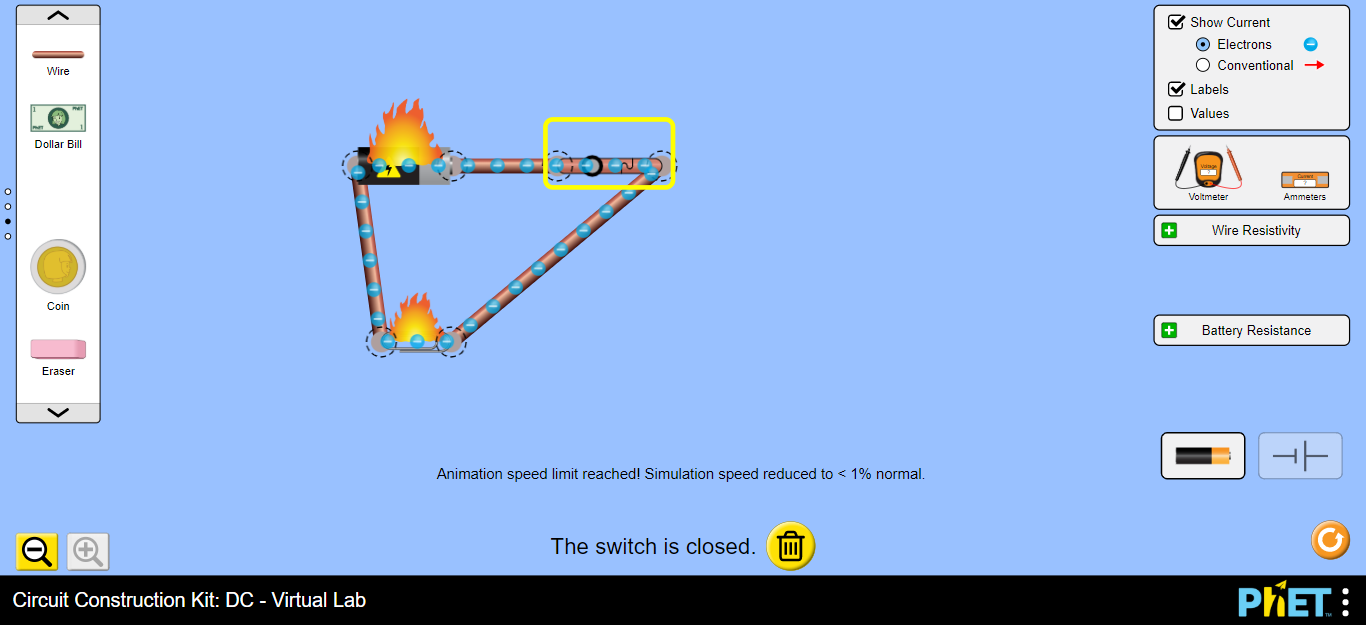
I liked the idea of showing components on fire if you try to put too much current through them (advance warning – the dog will also catch fire, which upset a couple of kids in my class!)

I also found DC – Virtual Lab worked well for those who picked up new ideas quicker than others. I set them some homework to investigate Ohm’s Law and they set up circuits to test the maths. Due to the depth of detail in DC – Virtual Lab, they quickly found out that wires and batteries also have resistance, so ‘perfect textbook models’ do not work in real life.
For the bright sparks in the class who really got into circuits and asked the deepest questions, I was lucky to stumble across Falstad’s circuit simulator.
Circuit Simulator
Falstad Circuit Simulator’s range of components and functions is wide enough to design some truly awesome circuits and quite frankly most of it reminded me of what I’ve forgotten since college.
Although it’s way above primary science level, one or two of the kids have played around with circuits before and had more advanced questions. We stuck to the Circuits > Basics menu; specifically resistors, potentiometers, voltage dividers and Ohm’s Law.

As you can see from the options under that one menu tab, Falstad’s Circuit Simulator is a beast of a program!
If we look at the voltage divider circuit (below), we can see that there is no beginner-friendly option of seeing pictures instead of the circuit diagram. However, if your students have got this far after using the other programs, they have probably out-grown pretty pictures!
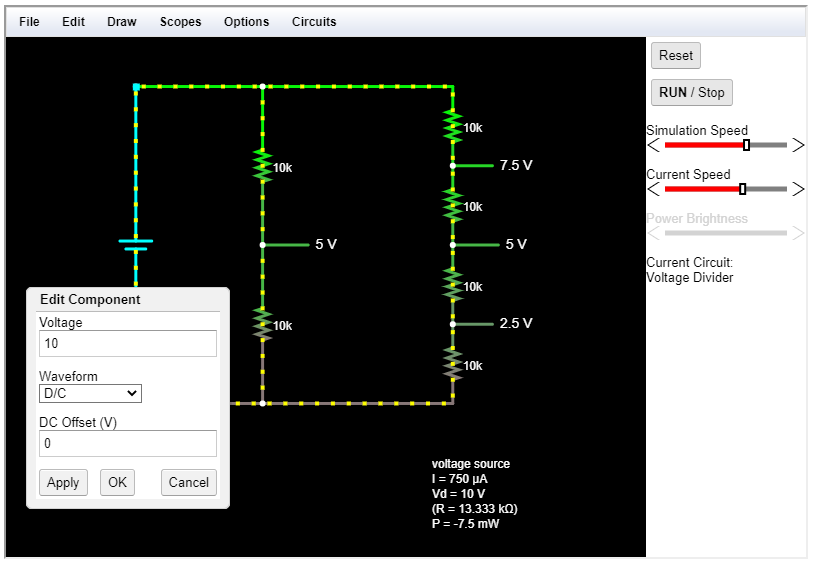
As with the DC – Virtual Lab, clicking on a component brings up an editing menu where you can change the values of the components. The yellow dots move to show current flow direction and intensity, so when students change the values, the animation reacts accordingly.
Under Options, you can select European symbols if you don’t like the American ones and you can also switch between conventional and electron current if you need to. The circuits load automatically when you select them from the menu, so there’s no setup required.
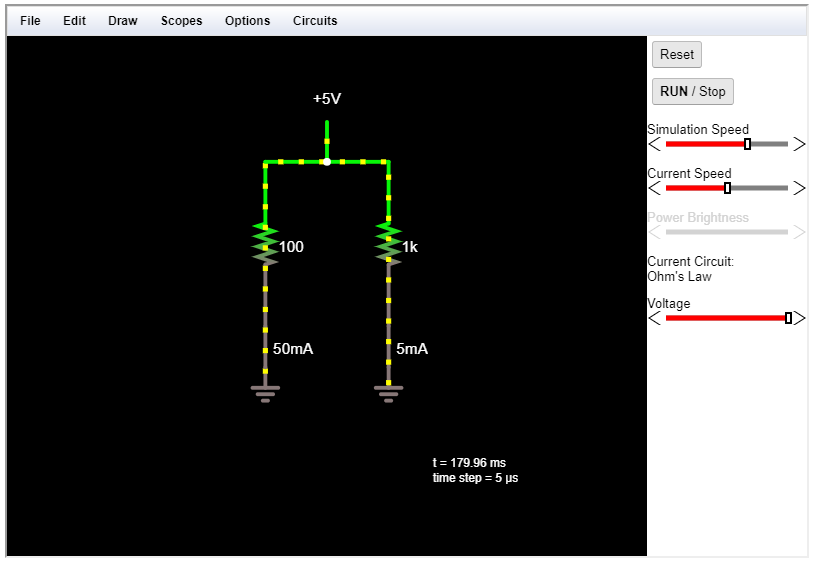
Ohm’s Law
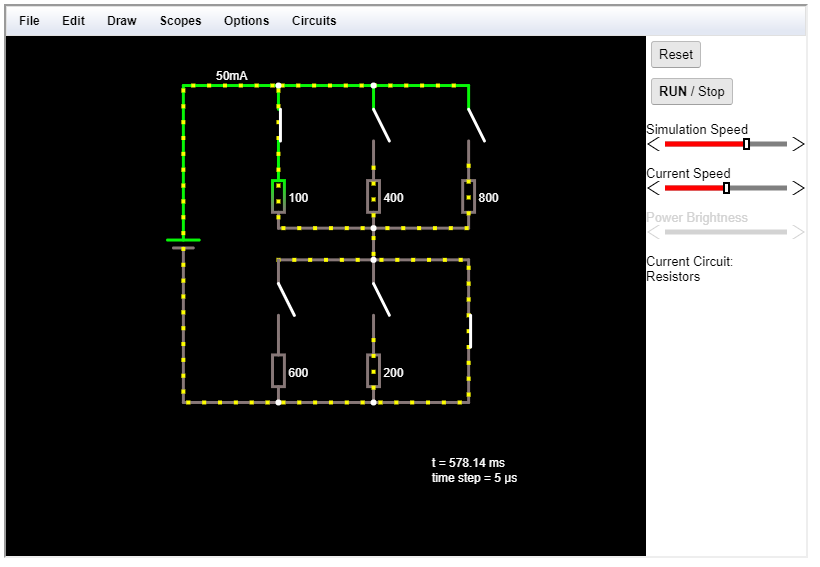
Resistors
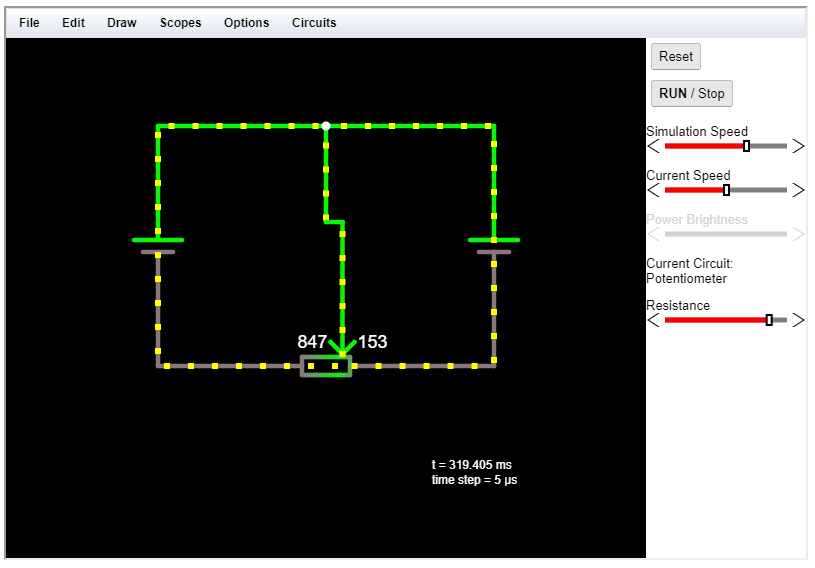
Potentiometer
Like I said, we just did the basics for those in the class who wanted something extra but this simulator can easily handle the kind of stuff I was learning when I was 18… and then forgot because I never used it.
In fact it’s perfect for me too because now I don’t have to go and buy the chips, breadboard and soldering gear to go back and relearn it myself. You can add capacitors, diodes, timers, 7-segment displays, logic gates, flip-flops, analogue to digital and digital to analogue converters…. It’s enough to make some people salivate!
So there we have it, readers. If you are still in the situation next school year where you have to teach online, I can recommend these simulators for primary subjects. If you’re in a part of the world where kids are back in the classroom, I believe these could be used far more effectively than diagrams in a book to get the kids’ attentions and introduce them to the concepts.
If you have used any that I’ve missed, please let me know in the comments.


0 Comments